Installing Bloxstrap is one of the easiest ways to unlock advanced Roblox launcher features such as FPS unlocking, FastFlag management, Discord Rich Presence, custom cursors, custom fonts, launcher customization, and improved update control. Unlike the default Roblox launcher, Bloxstrap gives players more control over how Roblox is launched and configured while still using the official Roblox client.
In this Bloxstrap Roblox guide, we will walk you through how to install Bloxstrap and cover everything about downloading, configuring, and verifying the latest version on Windows 10 and Windows 11.
What is Bloxstrap
Bloxstrap is a free, open-source desktop launcher and alternative bootstrapper designed exclusively for the Windows operating system version of the Roblox game client.
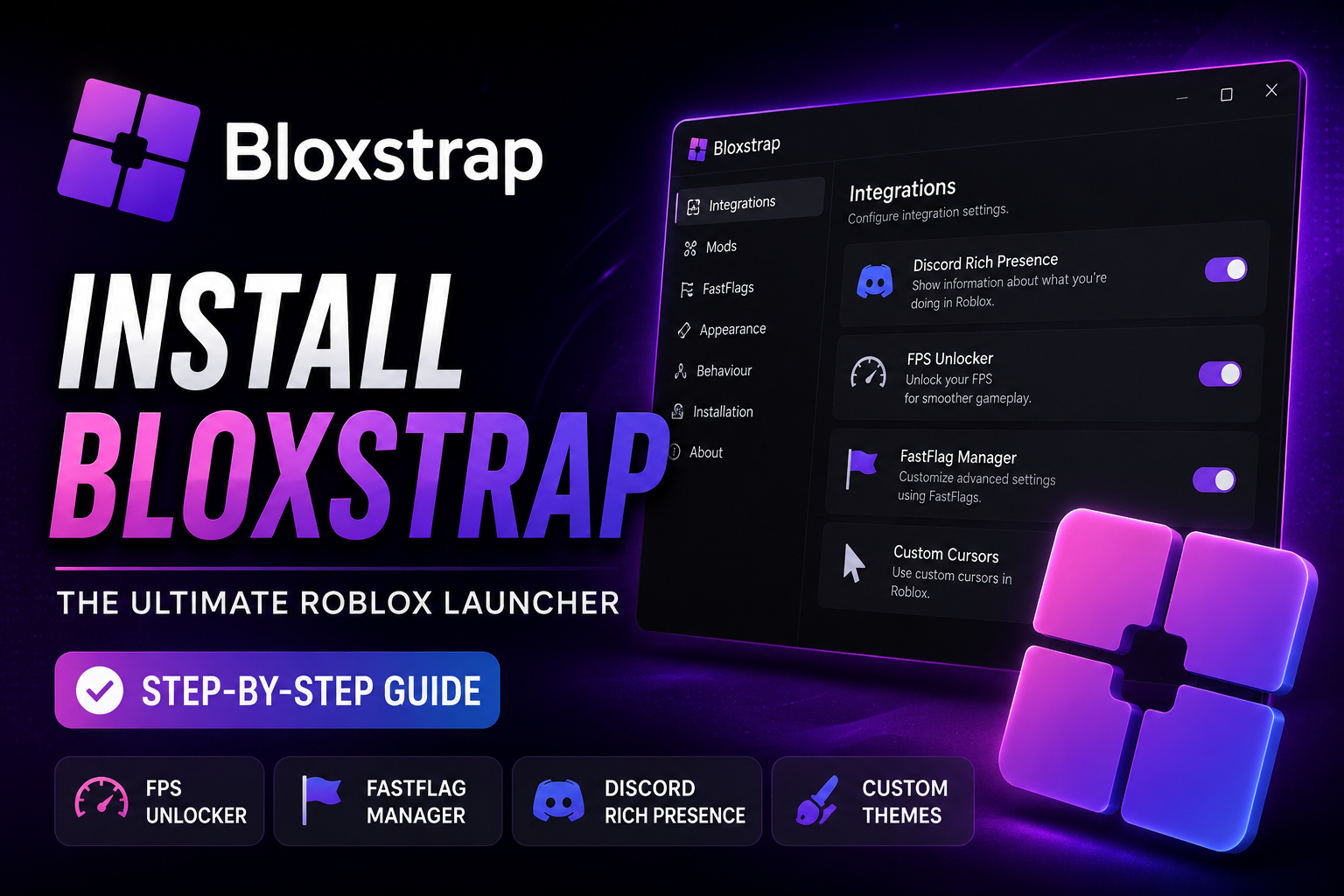
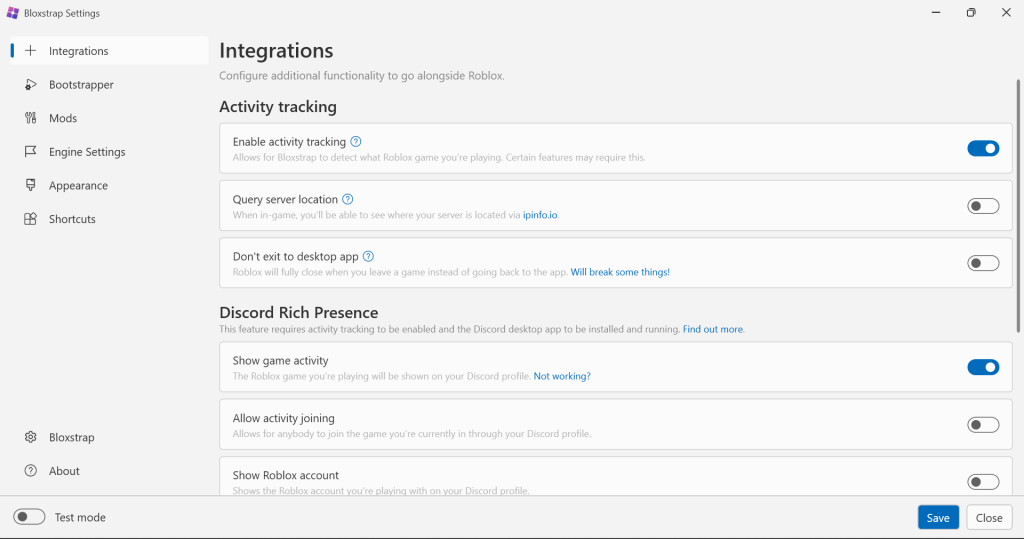
As shown in the dashboard image below, it acts as a safe, pre-launch intermediary tool that provides a unified graphical menu to configure your custom settings, visual modifications, and performance profiles right before executing the official, unedited Roblox client.
Rather than injecting risky code or acting as an exploit, it operates as a lightweight, drop-in replacement for the default Roblox bootstrapper, storing all files safely within your local user directory (%LocalAppData%\Bloxstrap).
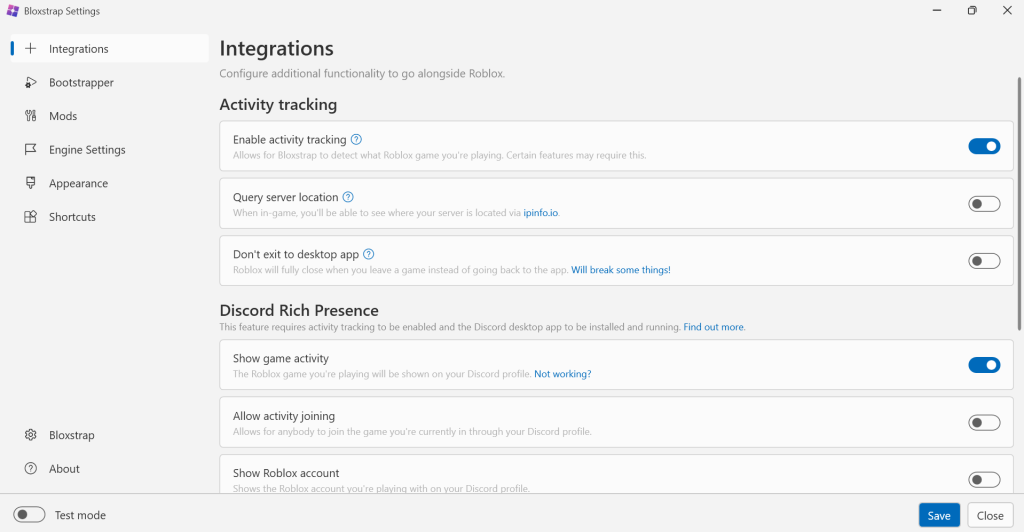
Through the Integrations and Engine Settings pipelines, users can instantly toggle an integrated FPS Unlocker to remove the default 60 FPS cap, manage advanced developer FastFlags for graphics and network optimization, and activate Discord Rich Presence (RPC) to stream real-time game activity directly to their Discord profiles.
Additionally, the Bloxstrap Mods module enables safe cosmetic adjustments—such as custom font libraries, custom mouse cursors, and custom user interface themes—entirely isolated from the core game files so you never risk breaking your base Roblox installation.
Bloxstrap System Requirements
Before initiating your installation, confirm that your computer environment meets the mandatory technical specifications required for the bootstrapper to function safely:
- Supported Operating Systems: Windows 10 (64-bit) or Windows 11 (64-bit) architectures.
- Unsupported Environments: Windows 7, Windows 8.1, macOS, Linux, SteamOS, Android, and iOS (iPhone) platforms are entirely unsupported. Attempting to launch the application on these setups will result in compatibility initialization crashes.
- Required System Dependency: Microsoft .NET 6 Desktop Runtime (x64 build). Please note that standard .NET framework variants, SDK development packages, or newer runtimes like .NET 8 will not satisfy the underlying application requirements.
- Internet Connection: An active internet connection is required during installation because Bloxstrap must communicate with Roblox servers to verify, download, and install the official Roblox client files.
Unsupported Platforms
Bloxstrap does not support:
- macOS
- Linux
- SteamOS
- Android
- iPhone (iOS)
- Windows 7
- Windows 8.1
Required Runtime
Bloxstrap requires Microsoft .NET Desktop Runtime.
This runtime provides the framework required for Bloxstrap to operate correctly. Without it, Bloxstrap may fail to launch or display runtime errors.
Internet Connection
An active internet connection is required during installation because Bloxstrap must communicate with Roblox servers to verify and install Roblox files.
How to Download Bloxstrap
Follow these steps to download the latest version of Bloxstrap . (Important Note: Be aware that there is no official configuration path for smartphone platforms.)
- Step 1: Visit the Official Download Page. Navigate to the official Bloxstrap download homepage to install bloxstrap on pc
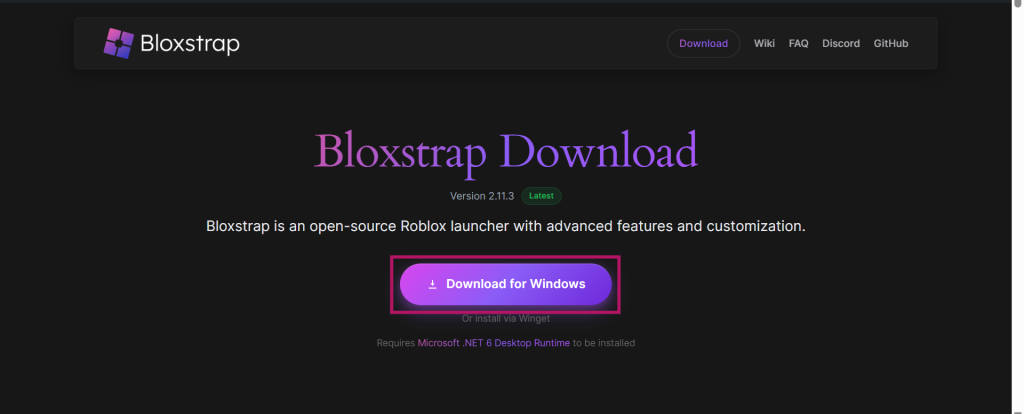
- Step 2: Click the Download for Windows button. This will Download the Latest Bloxstrap Release.
Most users should install the latest stable version rather than testing or experimental builds. The latest version of Bloxstrap is 2.11.3 as mentioned on GitHub.
- Step 3: Save the Installer: Save the installer file to your Downloads folder.
Once the download finishes, verify that the file downloaded successfully before continuing.
How to Install Bloxstrap in Roblox
Lets now learn How to install bloxstrap in roblox: First of all you need Bloxstrap latest version downloaded on your device. Now follow the steps carefully below to How to install bloxstrap on pc
- Step 1: Launch the Installer
Locate the downloaded installer.
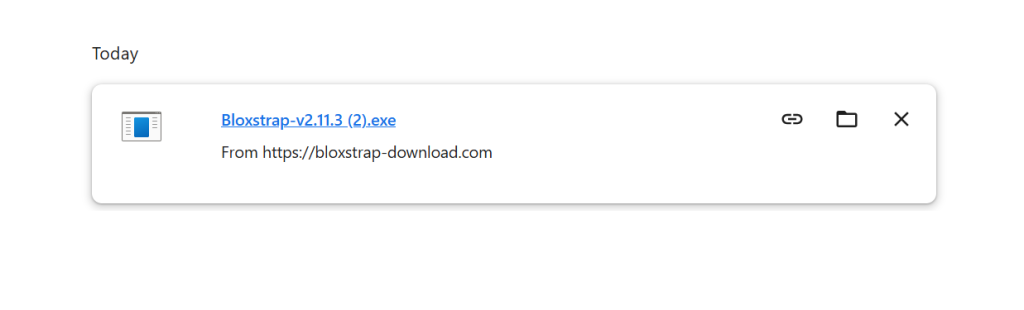
Double-click the executable file to begin installation.
Windows may display a SmartScreen warning.
If prompted:
- Click More Info
- Click Run Anyway
The installer should launch normally.
- Step 2: Complete the Installation Wizard
During installation, Bloxstrap will guide you through several configuration options.
These may include:
- Theme selection
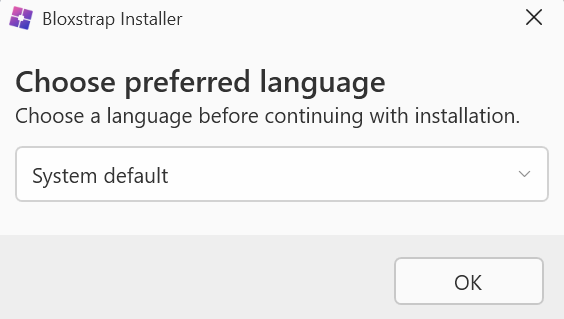
- Preferred language selection
- Launcher integration
- Protocol registration
- Roblox installation detection
Choose your preferred settings and continue.
- Step 3: Install Roblox (If Necessary)
If Roblox is not already installed, Bloxstrap can automatically download and install the official Roblox client.
This ensures that the latest Roblox version is installed correctly.
- Step 4: Register Roblox URL Protocols
Bloxstrap registers itself as the handler for Roblox launch URLs.
This allows all Roblox launch requests to pass through Bloxstrap before the Roblox client starts.
- Step 5: You will be presented with Bloxstrap installer. Al welcome screen will appear. You just need to click Next to begin Bloxstrap installation process.
- Upon clicking Next, you will be asked where to install Bloxstrap. Choose the installation path and click Install and Bloxstrap version 2.11.3 latest version will be installed on your device.
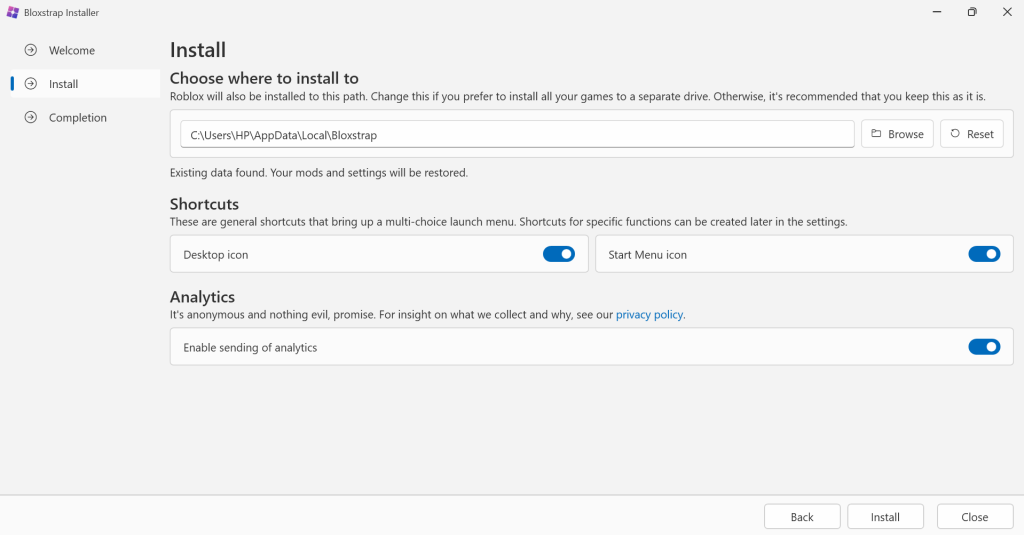
After setup finishes, Bloxstrap installs itself into your user directory and prepares its configuration files.
The launcher is now ready to use.
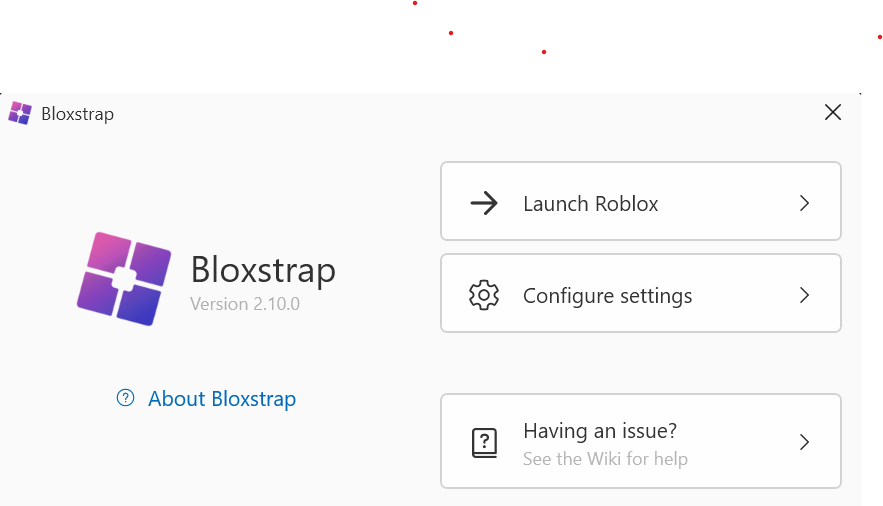
- You will now see this Bloxstrap Roblox launcher screen.
- Now that you learned How to install bloxstrap on pc, you will be presented with its Graphical User Interface that is shown below:
Where Bloxstrap Is Installed
By default, Bloxstrap installs itself completely inside your local user directory structure to operate safely without requiring administrative system permissions. The primary folder paths and configuration files are located at:
- Installation Directory Path:
%LocalAppData%\Bloxstrap(Contains core launcher executable assets) - Main Configuration File:
Settings.json(Stores your custom interface choices and dashboard selections) - FastFlag Configurations:
ClientSettings\ClientAppSettings.json(Manages active performance and graphics overrides) - Modifications Folder Hub:
Modifications(The secure directory where your custom cursors, fonts, and overlay assets are saved)
Understanding these file locations makes it incredibly simple to manually clear out corrupted data parameters or migrate your personalized setups cleanly when switching to a new PC.
Recommended Settings After Installation
Once your initial setup completes, access the Graphical User Interface menu tabs to configure these high-impact features for the best possible desktop gaming experience:
1. Enable the FPS Unlocker Preset
The built-in FPS Unlocker removes the standard, factory-capped 60 frame rate limitation natively applied to the engine, allowing your system to scale processing outputs dynamically to match high-refresh-rate 144Hz or 240Hz monitors.
- How to apply: Head over to the FastFlags tab sidebar navigation option, locate the Presets section, and check the box to enable the FPS Unlocker utility.
2. Configure Performance and Graphics FastFlags
FastFlags allow power users to safely tune hidden developer optimization configurations. Within the integrated visual flags editor, you can balance distinct application engines:
- Performance & Rendering: Adjust texture streaming profiles and rendering pipelines to minimize input delay.
- Graphics Quality: Enhance shadows, draw distances, and screen space lighting profiles beyond default values.
- Networking & Debugging: Tune memory thread allocations to decrease sudden connectivity packet drops.
3. Activate Discord Rich Presence (RPC) & Multi-Instance Support
Toggling the Discord Rich Presence feature establishes an active automation hook with your Discord desktop app to stream your exact world title, active server configurations, and session playtime parameters live onto your profile card. Additionally, enabling Multi-Instance Support configures the client launch protocols so you can open separate, independent game windows side-by-side simultaneously without triggering system initialization blocks.
How to Install Bloxstrap on PC free (Quick Recap)
Before you begin, ensure you have the latest version of the Bloxstrap setup file downloaded on your device, then follow these steps in order to install Bloxstrap on your PC for free:
- Get the Installer: To Download Bloxstrap Roblox bootstrapper, visit the homepage and click download Windows button to install Bloxstrap on PC Windows 10 and 11.
- Prerequisites: Ensure you have the .NET 6 Desktop Runtime installed. If you don’t, the Bloxstrap Roblox installer will prompt you to download and install it automatically.
- Run the Installer: Double-click the downloaded Bloxstrap file. If a Windows SmartScreen popup appears, click More info and then Run anyway
- Open the Bloxstrap downloaded .exe file, select your preferred language, configure your desired mods/settings in the menu, and click Install.
- Configure & Install: Follow the on-screen setup prompts. You can choose to customize features like Discord Rich Presence, graphics presets, and UI changes right from the installer.
- Play: Once finished, Bloxstrap will automatically connect to your Roblox installation. Simply launch Roblox from your web browser or the app as normal to enjoy your enhanced experience.
How to Verify Bloxstrap Is Installed Correctly
After installation, verify that Bloxstrap is working properly.
Method 1: Launch Roblox alternative bootstrapper
Open Roblox and join any experience.
If Bloxstrap launches before Roblox, installation was successful.
Method 2: Check the System Tray
Look for the Bloxstrap icon in the Windows system tray.
Method 3: Verify FPS Unlocking
If FPS Unlocker is enabled, your frame rate should exceed the standard Roblox frame rate limit when supported by your hardware.
Common Bloxstrap Installation Problems
Lets now discuss some common Bloxstrap issues.
Bloxstrap Won’t Open
Possible causes include:
- Missing .NET Runtime
- Corrupted installation
- Antivirus interference
- Damaged configuration files
Reinstalling .NET Desktop Runtime resolves most launch failures.
SmartScreen Blocks Installation
Use the More Info → Run Anyway option if you trust the installer source.
Antivirus Deletes the Installer
Some antivirus products incorrectly classify open-source launchers as suspicious.
Verify the installer source and add an exclusion if necessary.
Roblox Doesn’t Launch Through Bloxstrap
Open Bloxstrap settings and ensure it is configured as the default Roblox launcher.
Missing Runtime Error
Install the Microsoft .NET Desktop Runtime and restart your system before relaunching Bloxstrap.
Bypassing Windows Defender & SmartScreen Filters
Because Bloxstrap is entirely community-funded and open-source, the development team does not purchase expensive Extended Validation (EV) code-signing certificates. Consequently, the Microsoft SmartScreen filter will flag the installer as an “unknown application” on modern Windows installations.
If a blue dialog box stating “Windows protected your PC” blocks the file path execution, click on “More info” and select “Run anyway”. The installation process stores all necessary application configurations within your local user directory profile bounds (%LocalAppData%\Bloxstrap) and runs flawlessly without requiring elevated administrator execution properties.
Frequently Asked Questions
Is Bloxstrap safe?
Yes, Bloxstrap is safe and does not trigger Roblox’s anti-cheat or cause bans. Because it is a fully open-source Roblox Game launcher, the code is publicly viewable and verified by the community. However, you must only download it from verified locations to avoid malicious clones.
Is Bloxstrap Free?
Yes. Bloxstrap is completely free and open source.
Does Bloxstrap Modify Roblox
Bloxstrap manages launcher settings and configuration but still launches the official Roblox client.
Can Bloxstrap Get You Banned?
Bloxstrap itself is not designed as a cheat or exploit tool and is commonly used by Roblox players.
Does Bloxstrap Work on Mac?
No. Bloxstrap currently supports Windows only.
Does Bloxstrap Work on Mobile?
No. There is no official Android or iOS version.
Does Bloxstrap Require Administrator Permissions?
Most installations do not require administrator privileges because Bloxstrap installs inside the user’s profile directory.
How Do I Update Bloxstrap?
Bloxstrap includes update checking functionality and can notify users when newer versions become available.
How Do I Uninstall Bloxstrap?
Bloxstrap can be removed through Windows Apps & Features or by running its uninstaller.
Final Thoughts
Bloxstrap remains one of the most popular Roblox launcher replacements because it combines launcher customization, FastFlag management, FPS unlocking, Discord integration, update control, and mod support in a single package.
For most users, installation takes only a few minutes. Once configured, Bloxstrap provides a more flexible Roblox experience while continuing to use the official Roblox client and update infrastructure.
Whether you want higher FPS, advanced FastFlag controls, customization options, or a better launcher experience, installing Bloxstrap is the first step toward unlocking the full potential of Roblox on Windows.
Leave a Reply