Bloxstrap is an open-source, third-party, and alternative bootstrapper for the Roblox Client on Windows.
Bloxstrap allows you to add mods to Roblox and it also allows you to restore some old features; stuff like the old oof death sound sound, things like old, avatar movements, old menus.
You can add mods to Roblox so you can apply different lighting settings to game, can apply FPS unlockers and much more in Roblox.
It isn’t just a simple launcher; it’s an asset-injection engine that fundamentally changes how the Roblox client handles local resources.
If you’re tired of Roblox resetting your custom cursors, sounds, and textures every time the game updates, Bloxstrap is your fix.
By providing a persistent file-overwriting mechanism, it allows you to maintain a custom visual and auditory interface without modifying the game’s core binary or risking an anti-cheat ban.
Download Bloxstrap on your PC so that everything that we do below does not create an issue. When you download and install Bloxstrap on your PC, you will be able to customize Roblox with cosmetics mods, UI packs like textures, sounds, cursors, fonts, UI reskins that sits in your Bloxstrap configuration Modifications folder and it loads every time Roblox launches.
It is not a cheat or a malware. It is simple a mod pack; purely cosmetic and harmless.
The “Key Feature”: Persistence Over Manual Edits
You can manually edit Roblox assets by adding custom modes and files into the game’s core directories, but any edits you make are volatile—they are purged or the assets will be gone the moment Roblox pushes an update.
Doing it through Bloxstrap prevents that, and that’s the key feature. Bloxstrap automates the re-injection process at launch, ensuring that your customized environment remains persistent regardless of how often the game updates
What is Bloxstrap mod menu?
If you are looking to change how your Roblox client looks and sounds, you have likely come across the term “Bloxstrap mod menu” in various online communities. To be clear: It is not a cheat.
It is a bundle of cosmetic mods (textures, sounds, cursors, UI skins) that sits in your Bloxstrap Modifications folder and loads every time Roblox launches.
It never touches the Roblox game server, never reads game memory, and never injects code into the process. Anyone calling it a “wallhack” or “auto-farm” is either confused or trying to sell you malware.
Why the “Menu” name is misleading: There is no in-game menu that pops up when you press a hotkey. The term “menu” became popular because creators often ship these packs with a preview image that looks like a selection screen, but everything is actually managed by Bloxstrap at launch time.
What is the Purpose of Bloxstrap Custom Mods?
Bloxstrap custom mods enable cosmetic personalization by redirecting the Roblox Client’s asset-fetching process from default server-side files to local user-defined files. This functionality serves as an overlay, ensuring that aesthetic changes persist across game updates and platform patches.
In simple words, Bloxstrap mods operate as a cosmetic overlay. By default, Roblox fetches its assets from its own internal directory. Bloxstrap intercepts this process, redirecting the client to fetch your local, user-defined assets instead.
Why Modding Roblox Matters:
- Persistence: Your mods survive every Roblox update, so you don’t have to re-apply files manually.
- Safety: Because this system is strictly cosmetic and local-only, it maintains the integrity of the original game engine. You aren’t touching game memory or logic, which means you aren’t triggering Hyperion (Roblox’s anti-cheat).
- Total Personalization: Swap the “Oof” sound, overhaul your UI fonts, or replace the default cursor with a high-precision alternative—the client treats your files as the new “source of truth.”
Where to Find Legitimate Mod Packs
Since there is no “official store” for Bloxstrap mods, you have to know where to look. Here is where the community shares their work:
- Community Discord Servers: Many Roblox-modding servers have dedicated channels for mod-pack drops. These are often the fastest way to get new content.
- GitHub: You can find many individual creators who publish their packs as public repositories. Searching for “Bloxstrap mods” and sorting by “recently updated” is a great way to find them.
- GameBanana: This is a widely recognized hub for finding community-made assets.
- Social Media Links: Creators often share their packs in YouTube video descriptions or on r/bloxstrap.
Bloxstrap Mod Menu for Roblox: How to Install Bloxstrap Custom Mod menu packs
A Bloxstrap “mod menu” is simply a bundle of replacement assets (textures, sounds, cursors, UI skins) that you drop into your Modifications folder. It is not a cheat menu; it does not give you speed hacks, auto-farms, or infinite Robux. If a site promises those, it is a scam or malware.
1. Finding Legitimate Mods
- Trusted Sources: GameBanana is the primary hub for community-shared assets. You can also find packs on GitHub or established Discord modding servers.
- CRITICAL WARNING: A legitimate mod pack is always a
.ziparchive containing raw assets (.png,.ogg,.ttf). If a download is an.exefile, delete it immediately. Real mods never require an installer. If it’s an.exe, it is almost certainly malware.
2. Access the “Vault”
- Open the Bloxstrap Menu (via the system tray or by running the app).
- Navigate to the Mods tab in the sidebar.
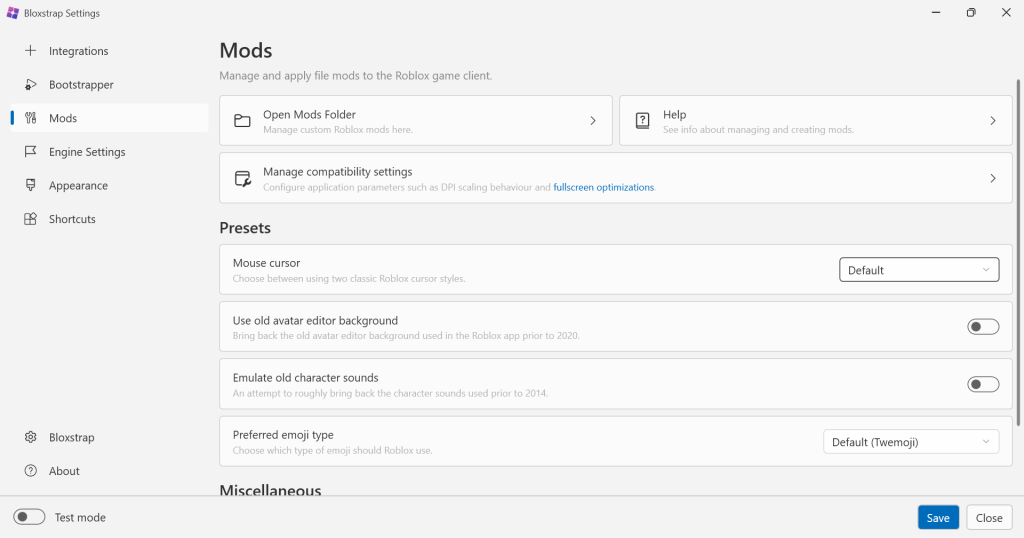
- Click Open Mods Folder. This brings you to
%LOCALAPPDATA%\Bloxstrap\Modifications. Keep this window open.
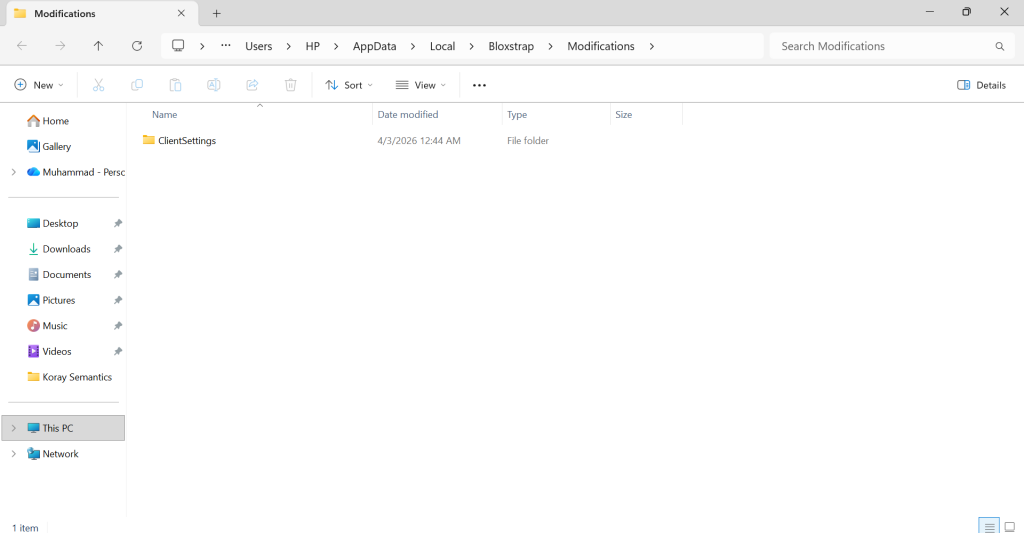
This is located in Modification:
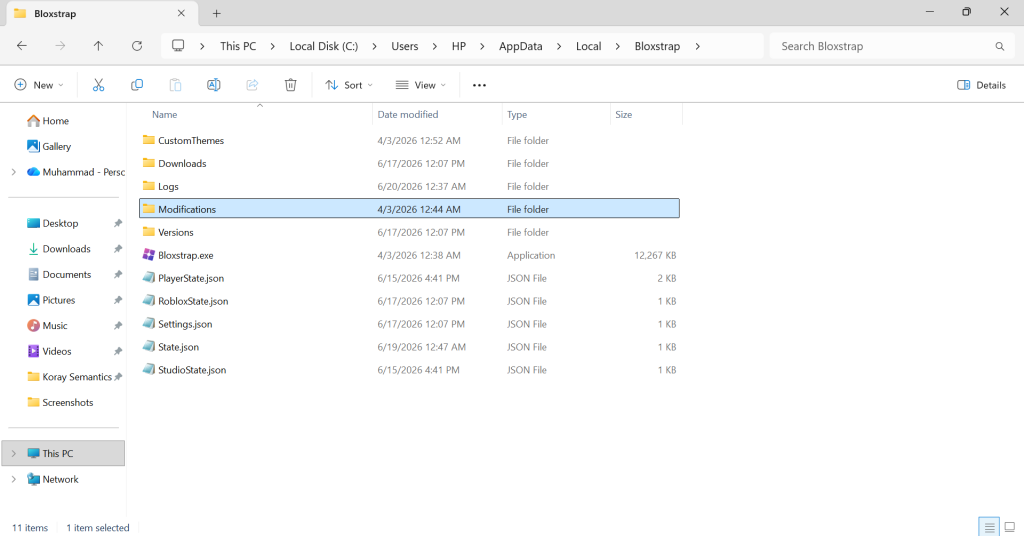
- Change the default mouse cursor to 2013 Angular Mouse cursor settings. This step is important to see textures folder – (later in section). Then click save.
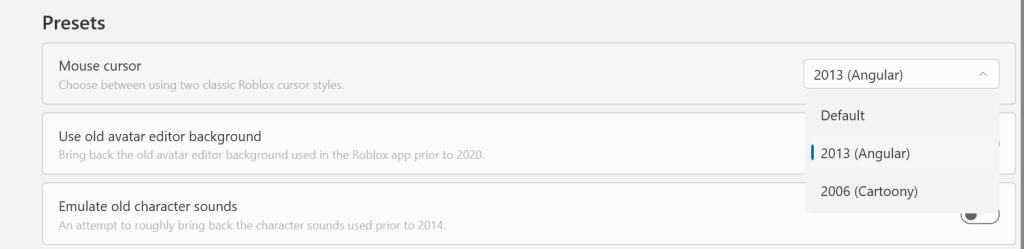
- Now click Open Mods Folder again. You will see this:
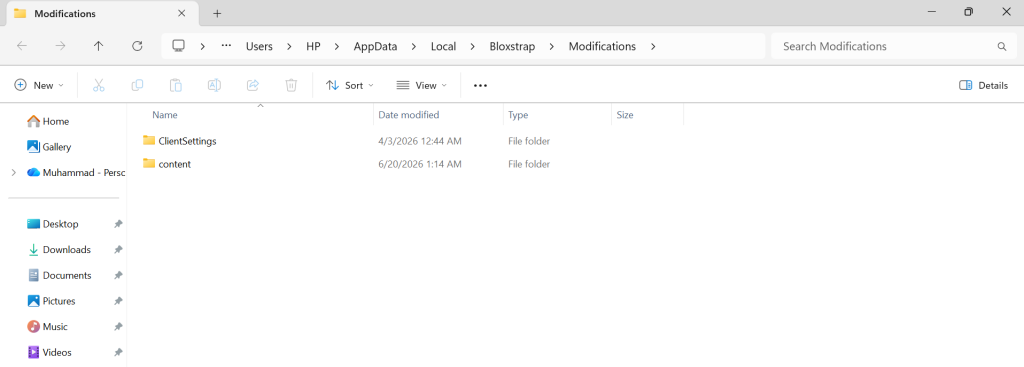
- Now click Content and you should now see textures folder once you click on content.
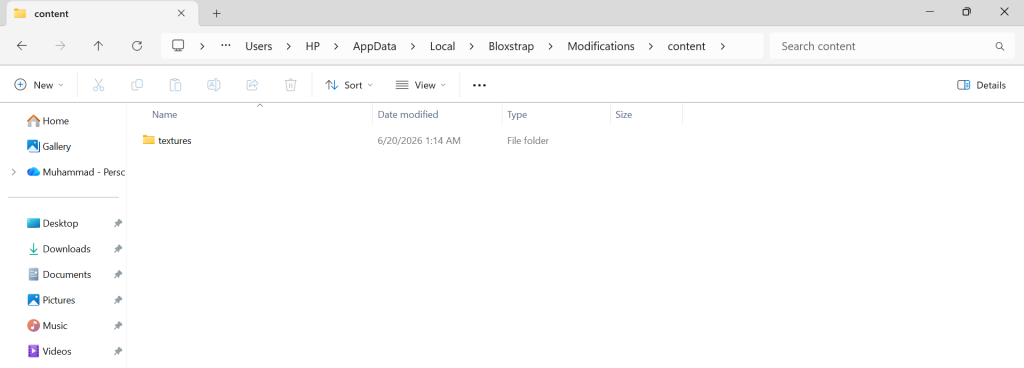
- Here you will see Textures folder. Now click it and you will see Cursors folder. Click on it. This will open KeyboardMouse.
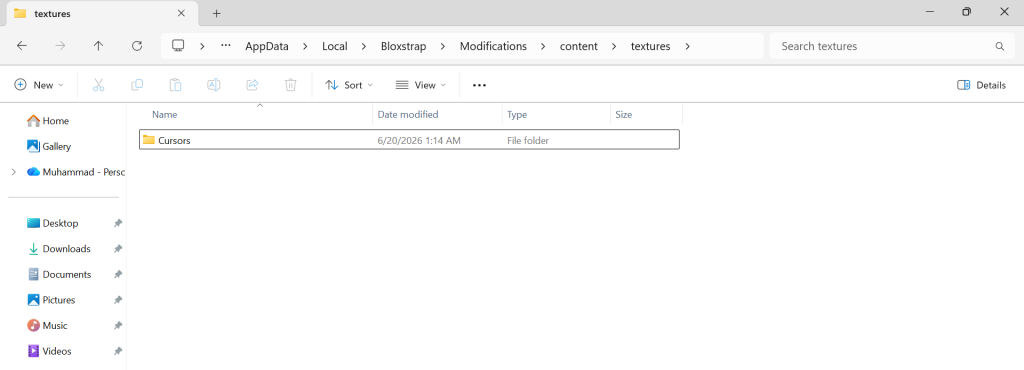
- Click on it. This will open KeyboardMouse.
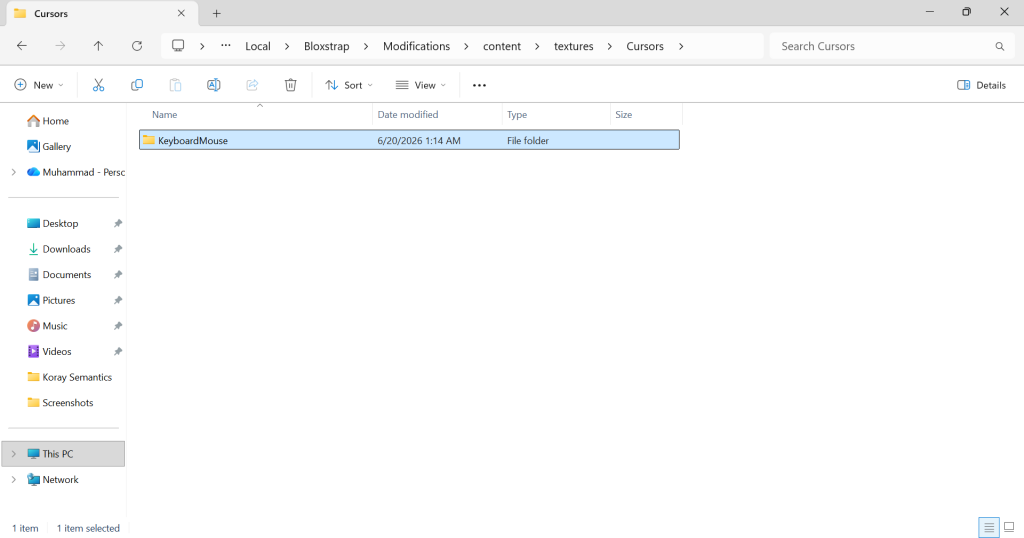
Here you should see two cursors already. One ArrowCursor and the other one ArrowFarCursor.
Now for this part, make sure you do exactly as I do so that you can see your custom cursor in the game.
Now that you are here, you’re going to want to delete these two cursors that you see here.
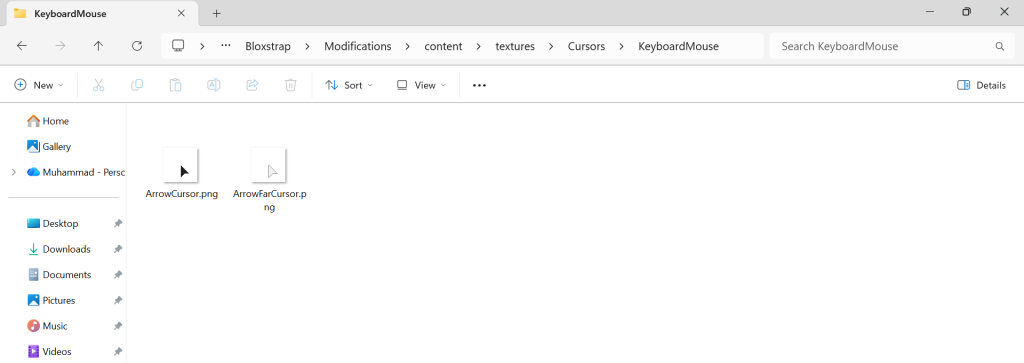
Then you want to go ahead and paste the new PNG which will also be your new cursor. I’ll show you exactly how to do this.
- You can search for a custom mouse cursor on Internet and save that to your PC. In this case, I will select any two custom mouse cursors to illustrate how to install mods in Bloxstrap on PC.
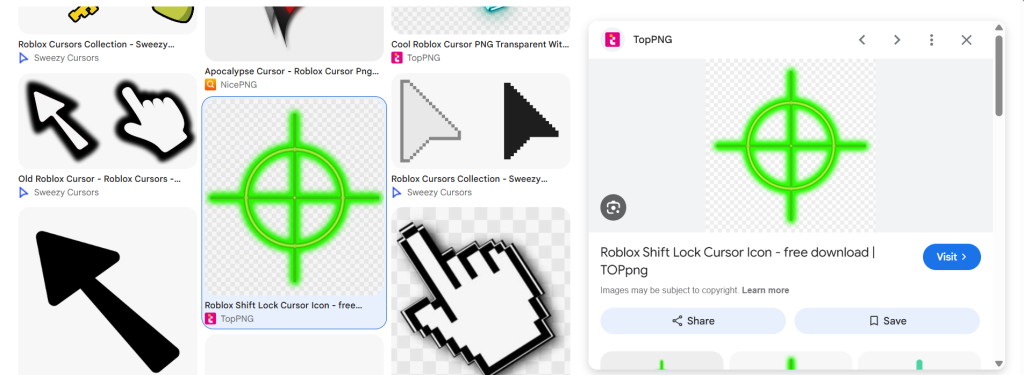
- Make sure the cursor you download is in PNG format. If it is not in PNG format, you can convert it in PNG through a converter.
- Also, when you download the custom mouse cursors, use background remover to remove any backgrounds so when you play your favorite game, the mouse cursor looks clean and slick. Once you do this save them to your PC.
- Delete the two old cursors that you see here. After you delete the old previous cursors it will look empty.
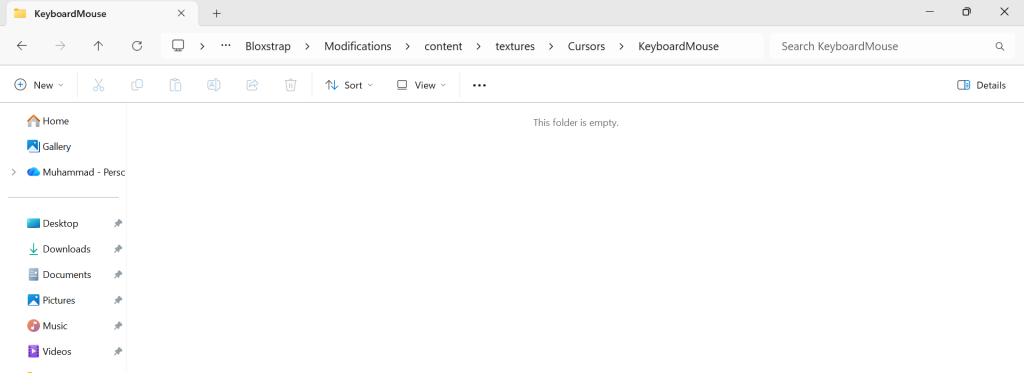
- Now go ahead and paste the new PNGs that you downloaded earlier. Move them here. These will be your new cursors.
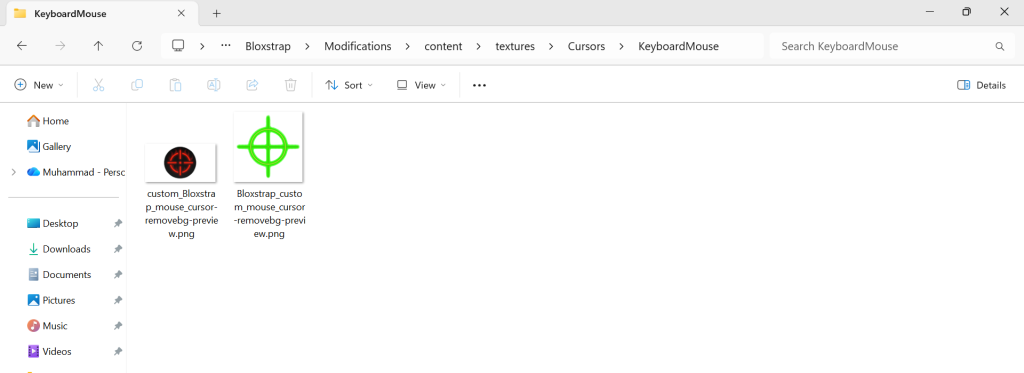
- Now you want to rename these cursors exactly as the previous two that we had in here. Now that you have two image files, follow the step carefully to rename them.
- Rename the first cursor to “ArrowCursor“. Rename the second cursor to “ArrowFarCursor” exactly like that.
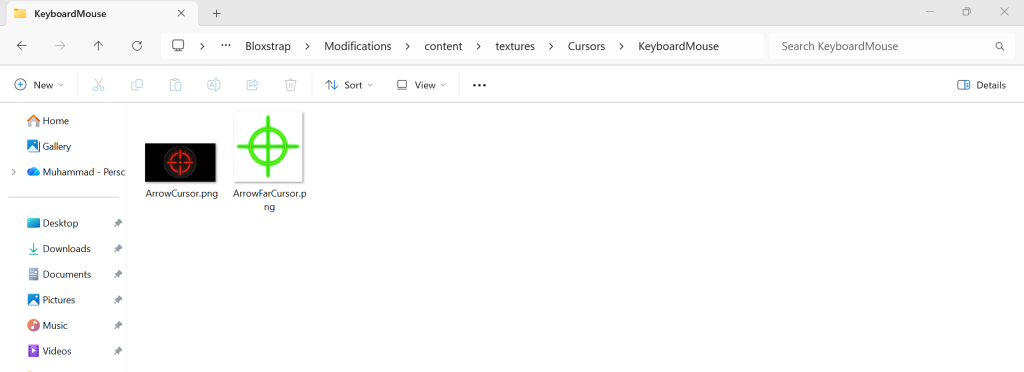
They need to be named exactly like this in order for them to work. So make sure that it looks exactly like mine.
You are now basically done. You can just exit out of here. Go back to your Bloxstrap and hit Save. It will say settings saved.
Now you can just go into your Roblox game and we should see our new cursor.
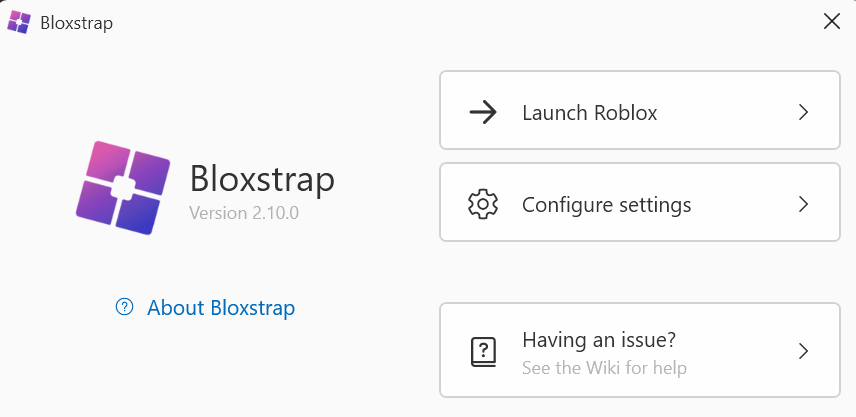
One last thing I want to say is that if you launch Roblox and perhaps you don’t see everything that I did, you can open Bloxstrap again and instead of opening Roblox like you normally open Roblox, make sure to launch Roblox through Bloxstrap.
It will be the first button that you should see when you open up Bloxstrap and you should be able to see everything now.
If still you don’t see everything now, you might be having other issues. You can write them in the comments below and I will help you if I know the answer.
Now let’s see our new custom mod cursors in Roblox Adopt Me!.
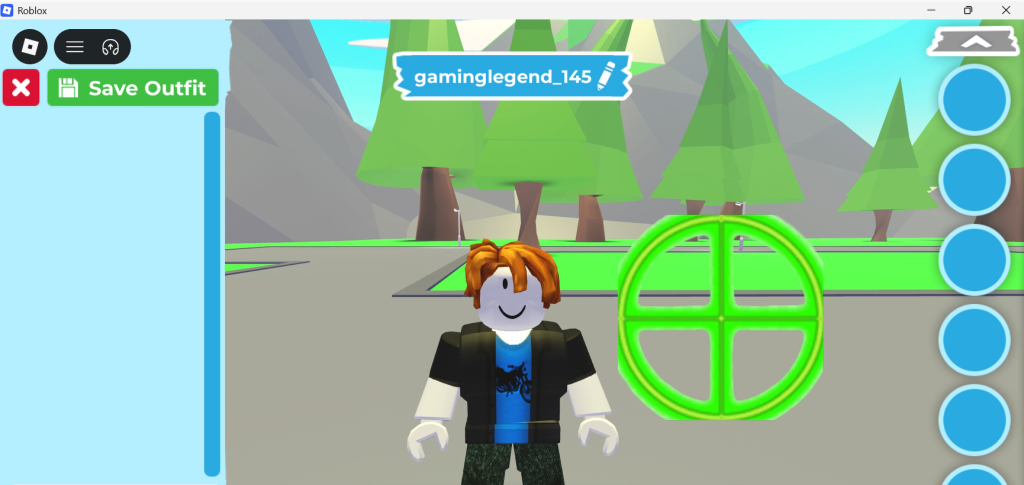
Here’s another custom mouse cursor mod with red color.
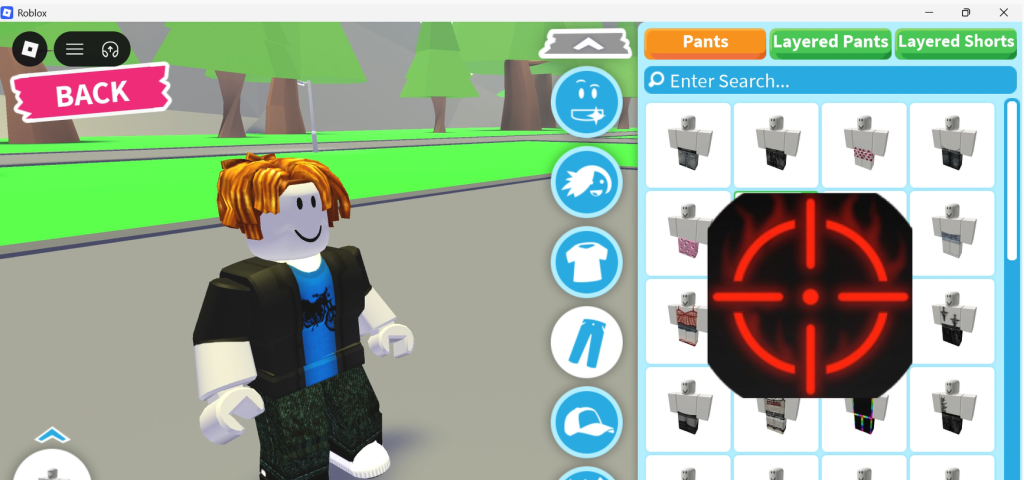
Add Custom FONT mod in Bloxstrap Roblox
- So here we are in Mods section.
- Here we will be changing our Fonts. Scroll down and under miscellaneous, it will say use custom font.

- So here is where you put the font that you want to use. So, in order to use a custom font mod, you have to download one from a website like dafont but you can use any other one that you know of or feel like using.
- For this How to install Bloxstrap Mod Roblox, I will be using this font.
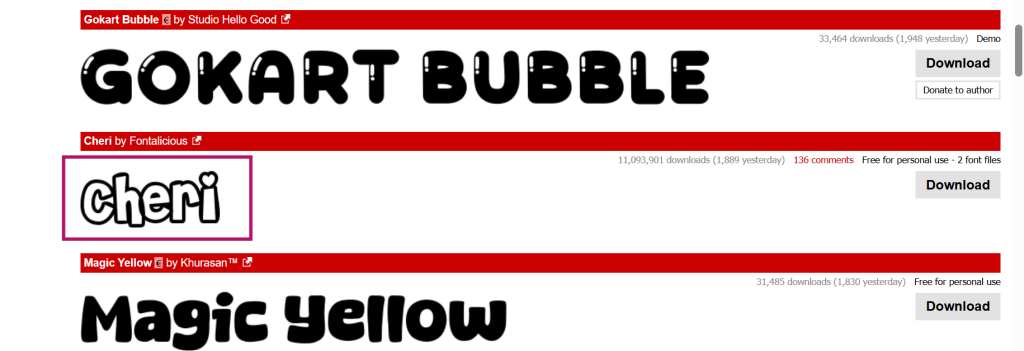
- To make it simpler, I’ve put my download font folder on desktop. It will look like zip file.
- Now double-click it and then once you open it, it will take you to a file location like this.
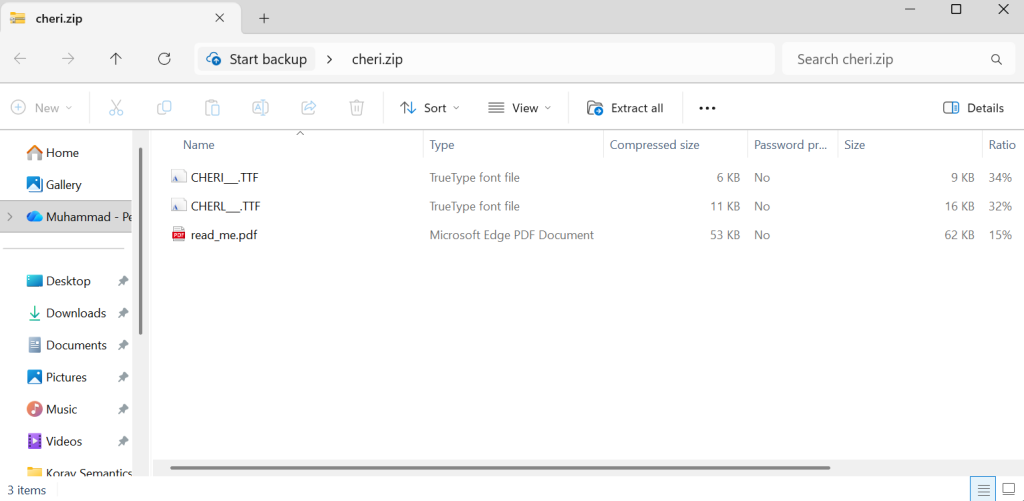
- The only thing you need from here is the one that says true type font file.
- Either just copy this or drag that onto your desktop for now.
- You can also repeat this with any other ones that you would like to download.
- Now go back to Bloxstrap and click Choose Font. Now, in this case I have my custom true type font file on my desktop. If you have it download or saved on any other location, move into that location and then select the true type font file.
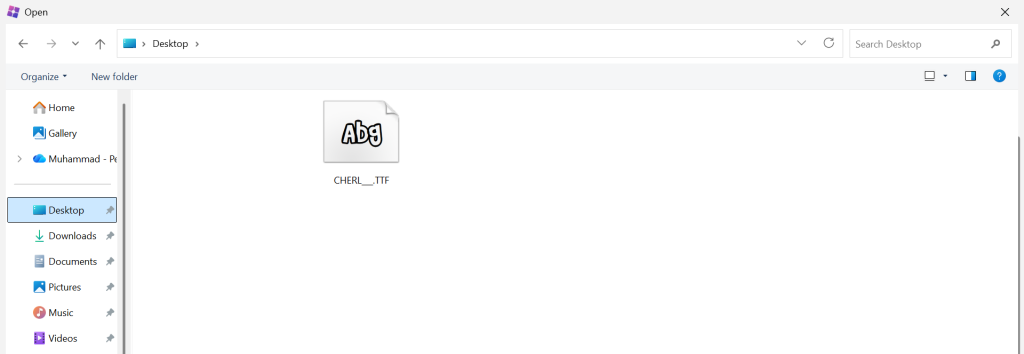
- After you select your custom true type font file, it will look like this. Click Save. And that is literally all you need to do.

- Now launch Roblox through Bloxstrap to finally see how our new custom font file looks in Adopt Me Roblox game.
- You can go ahead and close the Window or minimize it for now. Here’s how it looks on Roblox now.
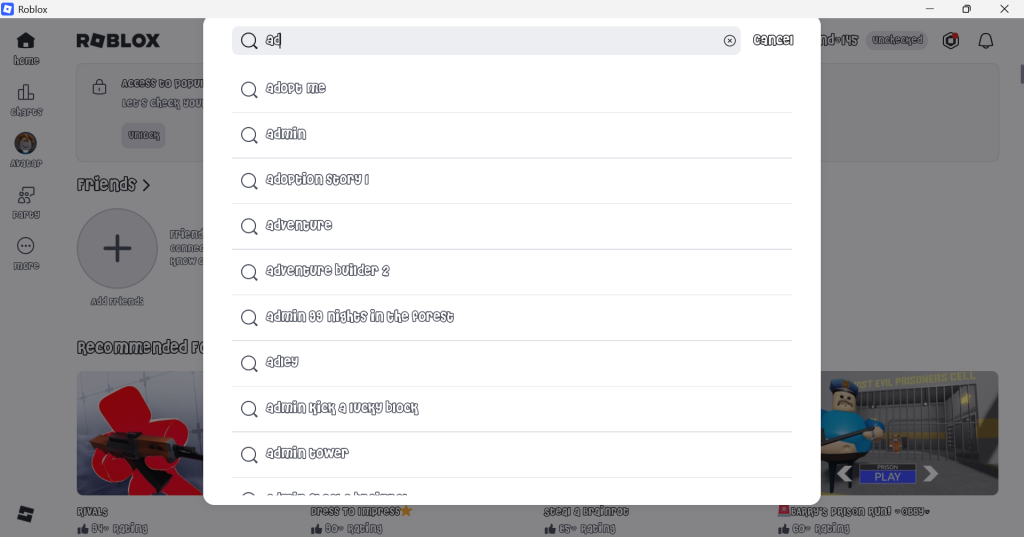
- Nice, it should look like whatever font you downloaded. You can see in the image it looks so adorable. I really like this one. We have successfully installed custom font in Bloxstrap now.
3. Mirror the Directory Structure (The Important Step)
Bloxstrap requires your Modifications folder to mirror the official Roblox folder structure exactly. In this step by step guide, I will show you exactly how to install custom death sound mod in Bloxstrap. Follow carefully.
- First, you have to download a custom sound effect whichever you like. In my case to illustrate how to Install Bloxstrap Mods on PC, I have used this one:
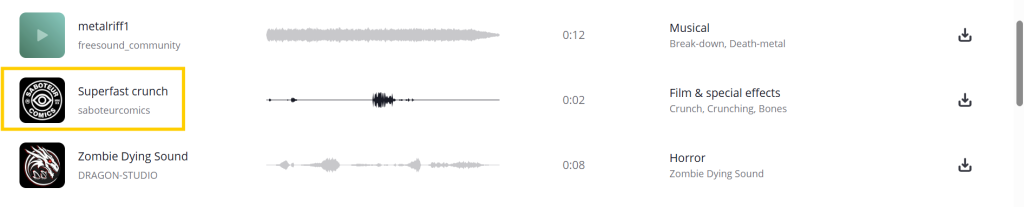
- Unzip your downloaded mod pack. In this case I already have .mps file format. But we need to change the file format to .ogg. You can use Free Convert to convert mp3 to ogg. I have moved it to desktop for ease.
- Now, we have to move into Versions folder. From here move to versions-xxxxxxxxxxxxxxxx. The x represents some numbers. Now from here, navigate to content folder > sounds.
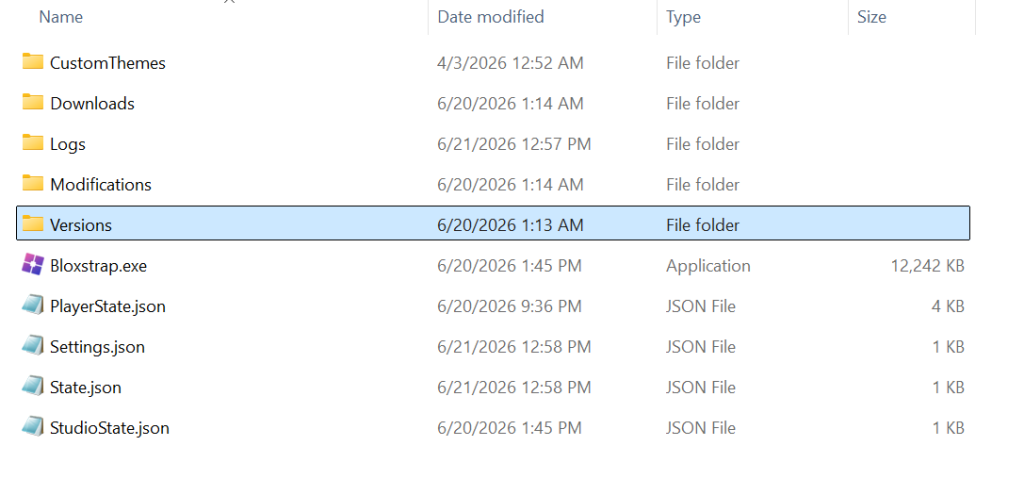
- Your final sounds destination will look like this.
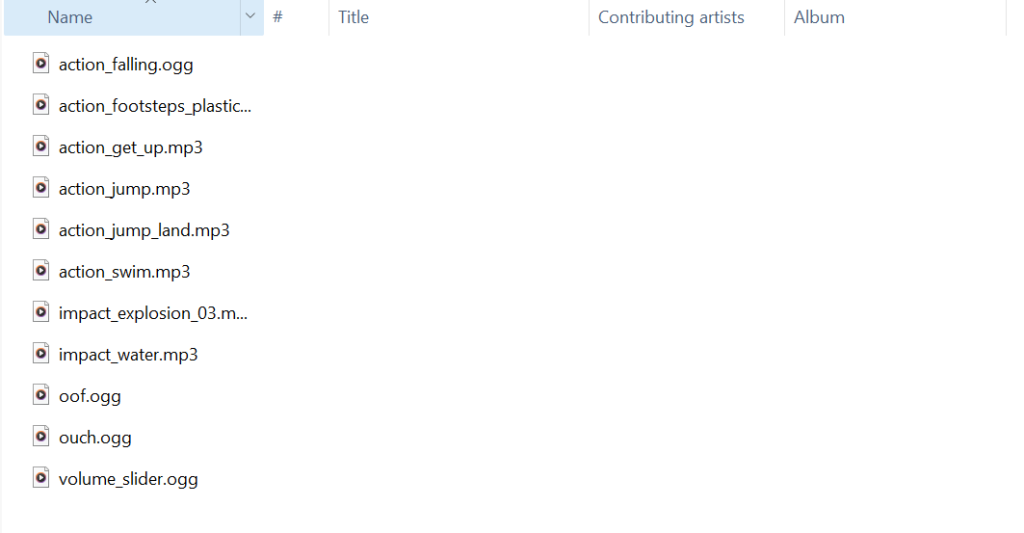
- Now drag and drop you custom new death sound effect mod directly into this folder. That means, if you want to change the death sound, the file must be placed at Versions\versions-xxxxxxxxxxxxxxxx\content\sounds\ouch.ogg.
- Now do this. Rename the death sound effect file to ouch.ogg. When you do this, it will look like this:
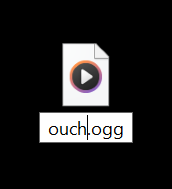
- Now drag this directly here.
- It will ask you replace or skip files. Click Replace the file in the destination.
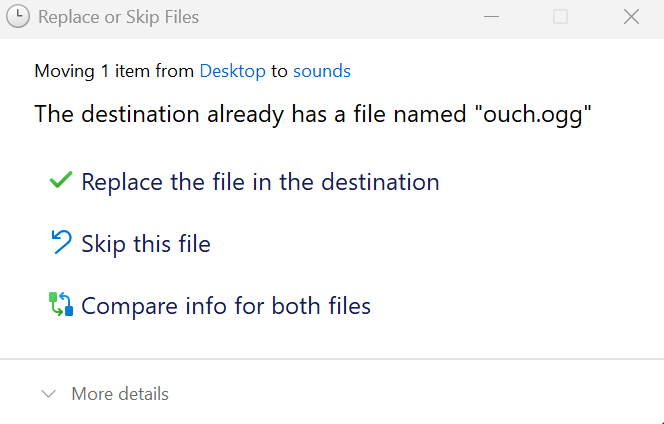
- That’s all basically there is to it. You can now listen to new your ouch.gg sound. It will be replaced with your custom death sound effect. Hit Save in Bloxstrap and now you are ready to play any game with this new custom sound mod in Bloxstrap Roblox alternative Bootstrapper or launcher.
- Note: Do not dump loose files in the root folder. If the folder path doesn’t match the internal Roblox structure, the game will ignore your custom file.
4. Applying and Testing
Close Roblox if it’s running. Launch a game through Bloxstrap. Bloxstrap copies the modified files into the Roblox install, starts the game, and you should see the new assets right away. If nothing changed, check your folder path—it should mirror the Roblox install layout (e.g., Versions\versions-xxxxxxxxxxxxxxxx\content\sounds\ouch.ogg.
Custom Cursor: You should see your new cursor immediately upon loading.
Sounds: If you replaced a death sound, it will play the next time your character dies.
Fonts: Custom fonts will render the next time the game UI draws.
How To Get Textures Mod In Bloxstrap- Modding Black TEXTURES in Roblox Bootstrapper
Beyond Bloxstrap custom sound and cursor mods, many players look to customize the visual environment of competitive games like Rivals. Applying “Dark Textures Mod” is a common preference to improve visibility, reduce screen glare, and lower eye strain during intense gaming sessions.
In this how to install Bloxstrap mods tutorial, we will learn how to get Dark Textures Bloxstrap Mod in Rivals game on Roblox. Follow along:
Why Players Choose Dark Textures
Dark textures Mod or any other texture your choice act as a visual overlay for the Roblox environment. By replacing the default, bright assets with darker variants, players can achieve:
- Reduced Eye Strain: Essential for players who participate in long sessions or play in low-light environments.
- Enhanced Focus: Darker palettes often reduce visual clutter, allowing players to better track gameplay elements in fast-paced titles like Rivals.
- Aesthetic Personalization: It allows users to give the Roblox client a sleek, “night-mode” feel that the default game does not provide.
The “Bloxstrap Advantage” for Textures
A common mistake players make is manually editing the Roblox install directory. As mentioned previously, any manual edit will be wiped out when Roblox updates.
Bloxstrap handles this differently. By using the Modifications folder, Bloxstrap redirects the game’s asset-fetching process. When you place your dark texture pack into the Versions\version-8884371d30284041\PlatformContent\pc\textures folder, Bloxstrap ensures that every time Roblox launches, it “injects” these textures over the default ones. This makes your dark theme persistent—it survives updates, patches, and re-launches without you having to re-apply files.
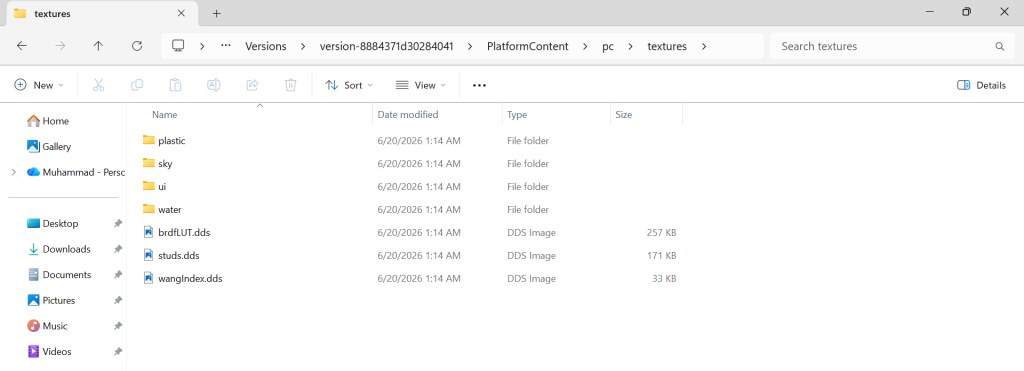
- To illustrate modding in Bloxstrap, we are going to download Download Dark Texture Custom Pack for Rivals. These are a basic set of dark textures that you can use for Rivals on Roblox.
- Before you begin applying your custom textures, it’s always a good idea to back up the original files. To do this:
- Copy the entire Textures folder from your Roblox directory as show in the image.
- Paste it in a safe location on your computer, such as a backup folder, to restore the default textures if needed.
- Backing up the original textures ensures that you can return to Roblox’s standard appearance anytime.
- After you delete them from here and move to a safe folder on desktop or somewhere else, the textures folder will look empty like this:
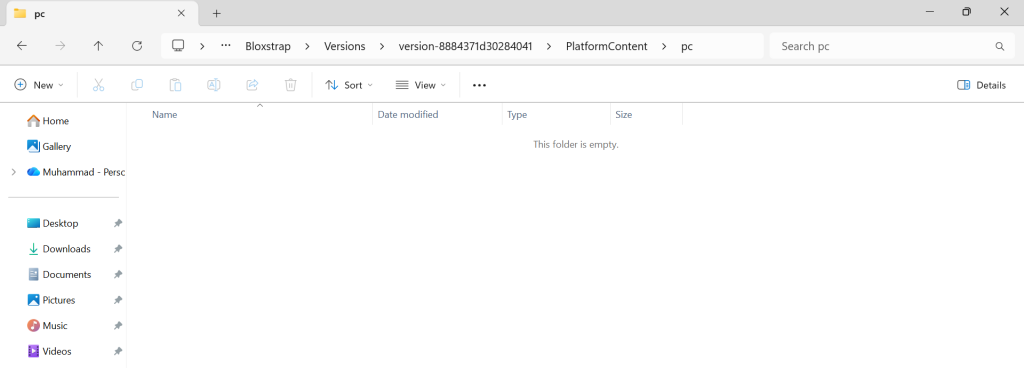
Once you’ve downloaded the dark texture pack and backed up your original files, it’s time to apply the new textures mod:
- Extract the downloaded dark textures custom pack to a folder on your computer. You have to extract all on your desktop.
- Copy all of the dark texture files.
- Go back to the Roblox texture folder:
Versions\version-8884371d30284041\PlatformContent\pc\texturesfolder and Paste the modded dark texture files into the Textures folder. Replace the existing files when prompted.
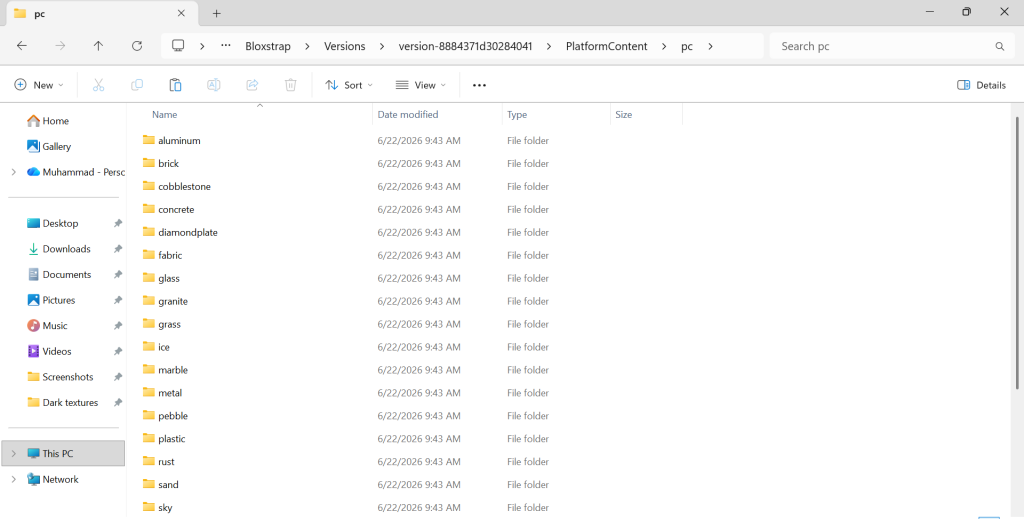
Once you have moved your extracted material folders into the Versions\version-8884371d30284041\PlatformContent\pc\textures directory, your custom textures will replace the default Roblox assets the next time you launch the game.
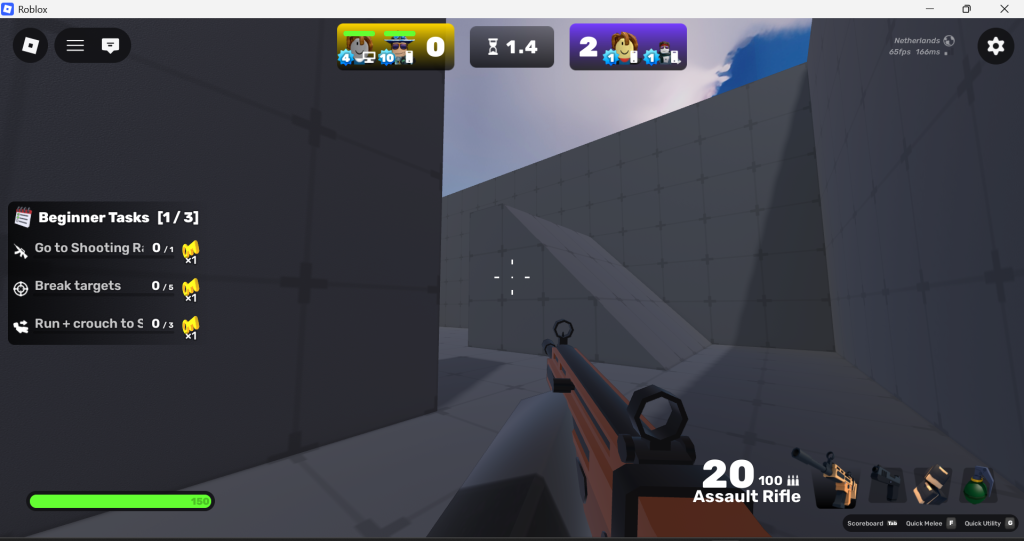
Bloxstrap automatically “injects” these files, giving your environment a sleek, “night-mode” aesthetic that reduces eye strain, lowers screen glare, and improves focus in competitive titles like Rivals. This is how dark mod textures will look in Rivals:
Building Custom Roblox Avatar Editor Themes With Bloxstrap! (HOW TO MAKE YOUR OWN)
Creating a custom theme for your Roblox avatar editor using Bloxstrap is a fun way to personalize your workspace. Here is a super simple guide to help you get it done.
What You Need
- Bloxstrap installed on your PC.
- Roblox Studio (which comes with your Roblox installation).
Step-by-Step Guide
- Enable the Feature:
- Open your Bloxstrap Menu.
- Go to the Mods tab.
- Find Use old Avatar editor background, turn it ON, and click Save. (The menu will close).
- Access the Theme File:
- Re-open the Bloxstrap Menu.
- Go back to the Mods tab and click Open Mods Folder.
- Navigate to:
extra content>places. - Find the file named
mobile.rbxl. Double-click it to open it in Roblox Studio.
- Customize Your Theme:
- Save a Backup: Before changing anything, go to File > Save to File As and save a copy in your Downloads folder so you can revert back later if needed.
- Build Your Scene: You can delete the existing background, but do not delete the invisible pole called “alignment.” (Tip: Turn its transparency to 1 so you can see it while building, then set it back to 1 when finished).
- Add Models: Use the Toolbox to drag and drop houses, trees, or other items into the scene.
- Lighting: You can adjust the Lighting settings in the Explorer window to change how your scene looks.
- Save and Apply:
- Once you are happy with your scene, press Ctrl+S to save the file.
- Make sure you rename the file exactly to
mobile.rbxl(remove any extra words or spaces). - Go back to your Bloxstrap folder (
Versions\Version-xxxxxxxxxxxxxxxx\Extracontent\places) and replace the originalmobile.rbxlfile with your new one.
- Test It Out:
- In the Bloxstrap Menu, go to the Mods tab, disable the “Use old Avatar editor background” setting, and click Save.
- Re-open the menu, enable the setting again, and click Save.
- Launch the Roblox desktop app and check your Avatar editor to see your new custom theme!
For a visual walkthrough, you can check out the full video tutorial I have posted above.
Technical Reference: Common Asset Paths
If your mod isn’t showing up, your file path is likely incorrect. Use this map to debug your directory structure:
| Asset Type | Path inside \Modifications\ |
| Mouse Cursors | content\textures\KeyboardMouse\Cursors\ |
| Character Sounds | content\sounds\ |
| Fonts | content\fonts\ |
| Avatar Background | ExtraContent\places\Mobile.rbxl |
| Surface Textures | PlatformContent\pc\textures\ |
Mod Menu vs. Exploits
You may confuse cosmetic mods with exploits. Understanding the difference is critical to keeping your account safe.
| Feature | Bloxstrap Mod Menu | Exploit / Executor |
| What it touches | Local asset files only | Game memory (RAM) |
| Safety | Harmless/Cosmetic | Bannable |
| Advantage | None (Visual only) | Gameplay hacks (Fly, Auto-farm) |
| Detection | Not detected by Hyperion | Detected |
Pro-Tips for Modding Mastery
- Conflict Resolution: Bloxstrap uses a “one big merged folder” solution. If you install multiple mod packs, they all dump into the same
Modificationsdirectory. If two mods fight over the same file, the last one you added wins. If your game starts glitching, clear yourModificationsfolder and re-add your clean assets one by one. - The Sprite Sheet Trap: Do not try to replace individual UI icons. Roblox stores these in “sprite sheets”—massive images containing dozens of icons. Modifying these is not recommended, as the icon locations change frequently with game updates and will break your UI.
- Updating: If Roblox updates and your mod dies, the internal path for that asset likely changed. Check the pack creator’s Discord or GitHub for an updated version. If you want to stop relying on them, follow the guide to Make Your Own Bloxstrap Mod to learn how to patch paths manually.
Common Pitfalls and Red Flags (Safety First)
To keep your account and PC safe, watch out for these warning signs:
- Avoid
.exeFiles: Real mod packs are always.zipfiles. If a site asks you to download an.exefile to get your “mod menu,” it is almost certainly malware—delete it immediately. - Ignore Gameplay Cheats: Any “Bloxstrap mod menu” that claims to offer wallhacks, speed hacks, or infinite Robux is a scam or an exploit. Using these will get your account banned.
- Read the Readme: Always read the included instructions. Creators often include important warnings, such as whether a mod needs to be disabled for competitive games.
- Don’t Run as Admin: Normal cosmetic mods never need administrator permissions. If a pack’s instructions ask you to run Bloxstrap as admin, be very suspicious.
- Check Source History: Be careful with videos from new creators who have no other content. It is often a trap to lure you into downloading viruses.
FAQs
Here are the answers to the most common questions regarding Bloxstrap mod menus.
- Does installing a Bloxstrap mod menu get you banned?
- No, as long as the pack consists strictly of cosmetic asset files (.png, .ogg, .ttf). Hyperion does not scan local asset swaps. You only risk a ban if you run an actual exploit and label it as a “mod menu”.
- Are Bloxstrap mod menus free?
- Yes, Bloxstrap and community-made mod packs are free. If a site tries to charge you for a cosmetic mod pack, they are likely selling stolen community work.
- Do these mods work on Roblox mobile?
- No, Bloxstrap is only for Windows. Any “mobile Bloxstrap” you find online is a scam.
- Can I run multiple mod menus at once?
- Yes, but they may conflict. If two packs replace the same file, the one you added last will be the one that shows up in-game.
- Do mod menus affect FPS?
- Almost never. Since you are just swapping assets, your game performance remains the same. The only exception is if you use extremely high-resolution 4K textures, which might impact older computers.
- How do I uninstall a mod menu?
- Simply go to your
%LOCALAPPDATA%\Bloxstrap\Modificationsfolder and delete the files associated with the mod. Launching Roblox again will revert your client to vanilla.
- Simply go to your
- Why did my mod menu stop working after a Roblox update?
- Sometimes Roblox moves or renames its internal files. If the mod is looking for a file at an old path, it won’t load. You usually just need to check the creator’s GitHub or Discord for an updated version.
- Is Bloxstrap safe to use?
- Yes, Bloxstrap is considered safe. It is an open-source launcher for Roblox that does not contain malware and does not inject cheats. Because it only modifies client-side files (like textures or fonts) and does not touch the core game client, it will generally not trigger Roblox’s anti-cheat or result in an account ban.
- How do I revert to default Roblox textures?
- To return to the original look, simply replace the custom texture files in your Textures folder with the original files you backed up earlier.
- Can I use dark textures in other Roblox games?
- Yes, dark textures are not limited to Rivals. Once applied to the Roblox client, these texture changes will reflect across all Roblox games you play.
- Can I create my own custom textures?
- Absolutely. You can create and customize your own textures using photo editing software, provided you save them in a compatible format like PNG and apply them using the same directory steps.
- Do dark textures affect game performance?
- Generally, no. As long as your texture files are properly optimized and not excessively large in file size, your performance will remain consistent with the default Roblox experience.
- Can I switch between different texture packs?
- Yes, you can swap between packs easily by organizing them into different folders and replacing the files within the Roblox texture directory.
Leave a Reply